Before pairing a smart key box: decide account ownership, check what permissions a partner can receive, test revocation — and save the help pages.
This guide is not medical advice. Stop use if significant pain, numbness, swelling, discoloration or circulation concerns occur.
Pairing is the moment a key box becomes someone’s device — and “someone” is the question most buyers skip. The account that pairs first usually owns the hardware’s permissions; what a partner receives later depends entirely on the maker’s permission model. Ten minutes of reading before pairing prevents the most common smart-box regret: a device whose controls live in someone else’s account.
This checklist uses only what makers document about their own products; the QIUI Metal Key Pod serves as the worked example. The system context is in the smart key box guide.
Which account owns the device?
The account that completes pairing — typically the first to register the hardware in the maker’s app. That account controls the box’s settings, timers and (per the maker’s permission model) any sharing. Before pairing, decide deliberately which account should own: yours, your partner’s, or a dedicated account you both can access. Default ownership is an accident; chosen ownership is a decision.
Write the answer down: account identity (email), the device it owns, and the date. Ownership records are dull until the day a phone is lost, a relationship changes, or a firmware reset asks who you are.
Which permissions can a second person receive?
Whatever the maker’s app documents as shareable: some products allow a partner account live control, others offer view-only or timer visibility, and some allow no sharing at all — one device, one owner. The Metal Key Pod’s sharing capabilities are whatever QIUI’s current app documentation states for it; this guide deliberately does not guess the feature list, because permission models change with app versions.
Check the sharing surface before relying on it: pair the box, open the sharing or partner section, and photograph what options exist. What the app shows today is the permission truth; what a product page promised last year is marketing archaeology.
How are permissions removed or transferred?
The maker’s documented path — and it must exist in writing before you need it. Look for: how a shared partner is removed, whether ownership transfers to another account, and what a factory reset does to ownership and timers. Products answer these differently, and the differences are exactly what a breakup, a lost phone or a hardware resale turns urgent.
Test removal while the stakes are low: share to a secondary account, revoke it, confirm the revoked account actually lost access. A permission model you have tested is a permission model you can trust; one you have only read about is a claim.
QIUI Smart Key Holder – App-Controlled Metal Key Pod
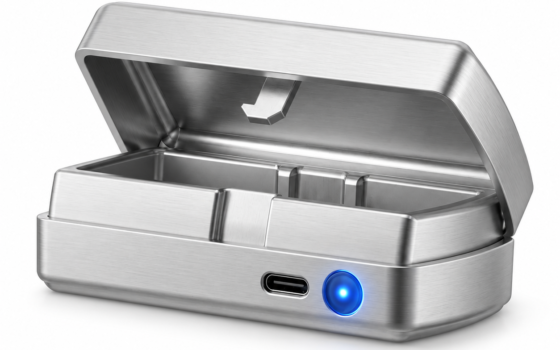
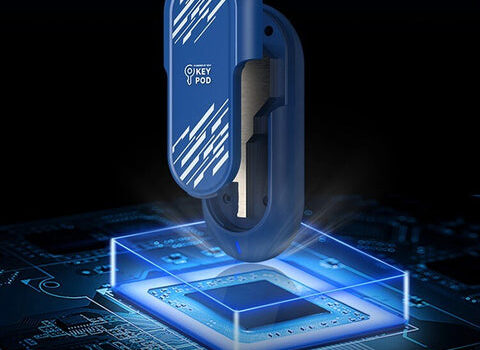
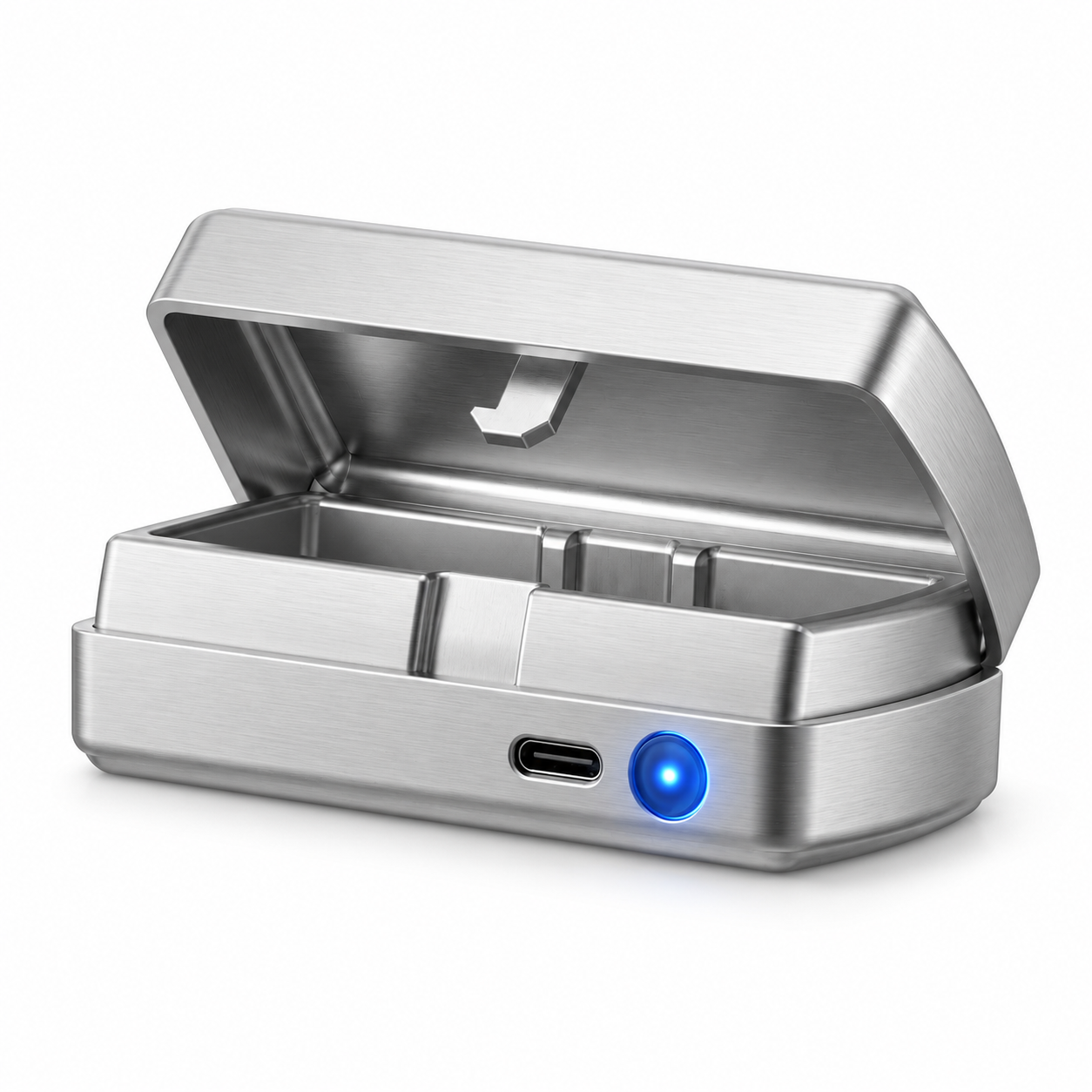
The worked example — a metal key pod whose app account owns its controls: The QIUI Metal Key Pod adds a dedicated metal box for physical keys, with listed Bluetooth/app control, an offline timer and USB-C charging. Choose it for managing the key rather than replacing the cage itself. Keep an independent emergency-access arrangement outside any timed box.

Which current help pages should you save?
Four, as live links or screenshots in your kit record: the product’s official support page, the app’s permission-sharing documentation, the factory-reset procedure, and the maker’s account-recovery path. Screenshots beat links here — apps get redesigned, and a screenshot of the permission model you relied on is evidence of what you were told.
Save them beside the emergency-key record. Smart-box administration and exit planning are the same document in this category: both exist for the day something stops working normally.
Own the account on purpose, share only what the app documents, test revocation while it’s cheap, and save the help pages beside your exit plan. Pairing takes five minutes; the paperwork around it decides who controls the box for years. Do the paperwork.
This guide includes promotional links to ChastityCage.co. To review the current models, browse QIUI wireless products at ChastityCage.co.